
Getting started with Onform? We’ve organized the most important terms and features you’ll come across inside the app and grouped them by category to make learning faster and simpler.
Workspaces, Teams, and Organizations

Workspace
A workspace is like a home base for each athlete or team. Within that workspace, you’ll record videos, send messages, and take notes. Everything stays organized by person or team in one place.
Team
When you’re working with a group that practices together, like a sports team, you can set up a team workspace which makes recording anyone on the team easy, and enables communication with everyone individually or all at once (i.e. the hurdles group on your track team). Everyone in the team can chat with each other too, and you can also send private messages to each athlete within the team. Note that if your library is set to ‘default private’, team members will still only see videos of just themself that you share with them, they don’t see everyone else’s videos.
Organization
Every Onform coach has a personal account and an organization account. The organization lets you work with other coaches, use bulk tools, manage staff, and professionally brand your workspaces. It also enables others to add and remove athletes/coaches on behalf of the person without another invite. The personal account is intended for coaching outside of the organization.
Collection
Collections let you group individual or team workspaces for organizational purposes. For example, if you run a Tuesday night clinic, you can create a collection of all those students. They’ll be treated as individual workspaces, but you can send one broadcast message to all of their private chats all at once.
Organizing Your Files
Library – All Files
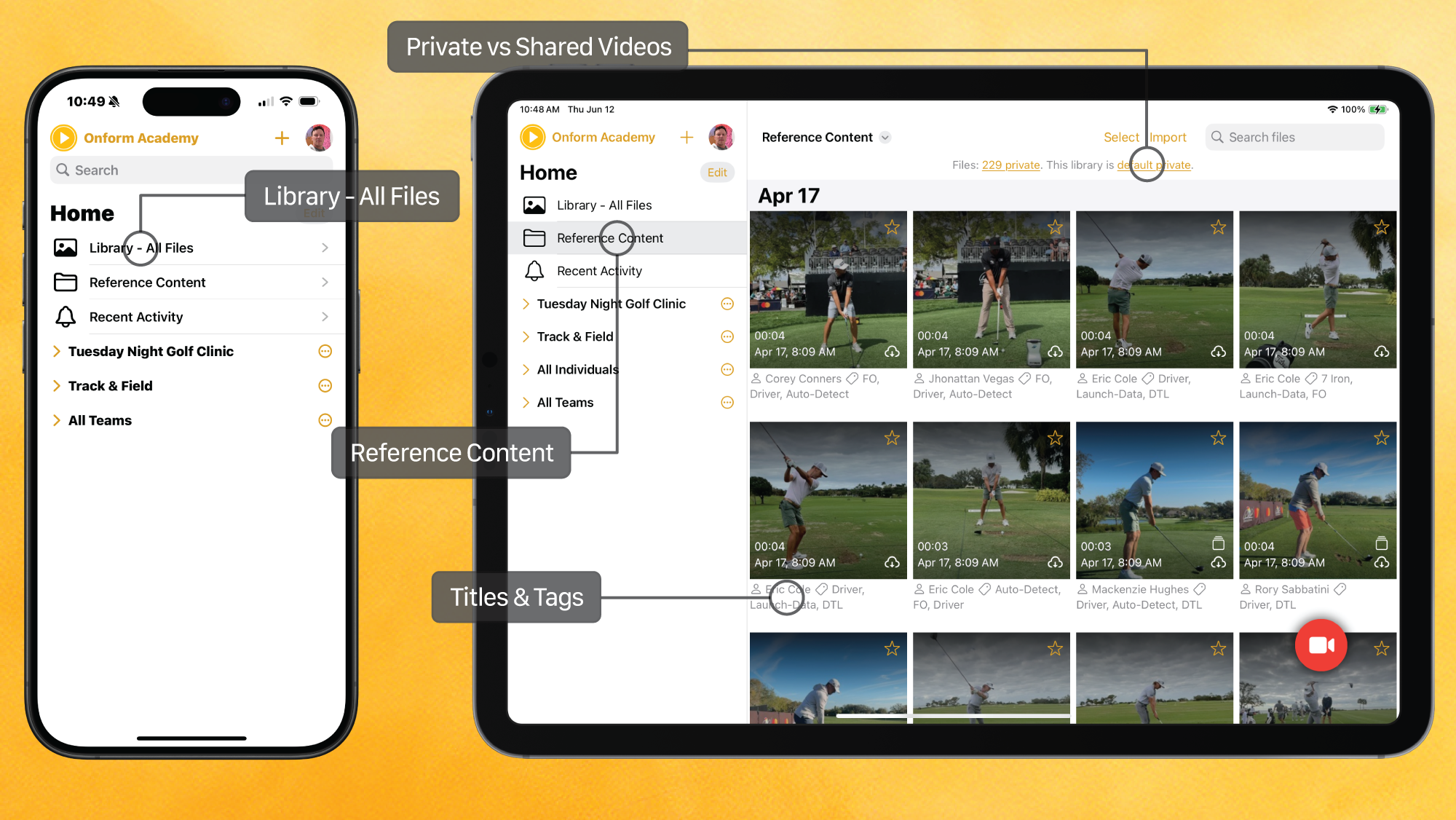
This is an aggregation of all your videos across every workspace (and you can record directly in this location too). You can filter by tags or titles to find exactly what you need quickly. You can also record a video and tag it with any person in your account.
Default Private vs. Default Shared
You get to decide if the videos you record are private until explicitly shared or shared automatically:
- Default Private – With default private, videos stay visible only to you until you choose to share them. This gives you full control over what gets shared and when.
- Default Shared – Default shared means every video you record, or your student/athlete records, is automatically shared with members of that workspace. You can always switch it to private if you need to.
Reference Content
We add videos of pro athletes to your reference content library, so you can compare your athletes with top performers, or use them as examples to point out key areas to focus on. You can also upload your own reference videos or import your clips from social media.
Titles
You can title any video with something helpful, like “100m hurdles PR” or “Free Throw Drill – Left Elbow.” It makes searching simple.
Tags
Tags make it easy to organize and search for videos later. You can add tags for the athlete’s name, type of movement (like “curveball” or “backhand”), equipment used (such as “Full Swing KIT”, “7-iron”), specific drills performed, or anything else that helps you filter and sort your library. You can also combine tags when searching, for example search for “7-iron” and “left-handed”.
Recording Modes

Manual
The most basic recording mode. Tap the button to start and tap it again to stop. It works just like your phone camera..
One-Tap
One-Tap captures a few seconds before and after you tap the record button. You can adjust how much time before the tap and after the tap is included. It helps you catch the full action without starting too early or cutting off the finish. You could press record right when the player makes contact with the ball, and it will show you the lead up and the follow through.
Auto-Detect
Auto-Detect is hands-free. Set up your device, and when an athlete steps into the frame and takes a swing or makes a pitch, Onform records it automatically. Currently designed only for baseball, golf, and softball (hitting only).
Auxiliary-Cam
Auxiliary-Cam allows you to utilize up to four devices to record from different angles at the same time. This gives you a full picture of the movement from every view. Multi-cam recording is only available for iOS devices.
Launch-Monitor
Golf coaches can connect a Full Swing KIT or Garmin R10 to record ball and club data. You’ll get details like carry distance, spin rate, and ball speed with every swing. This mode also captures the swing for you, so it is truly hands-free recording.
Video Settings and Tools
Shutter Speed & ISO
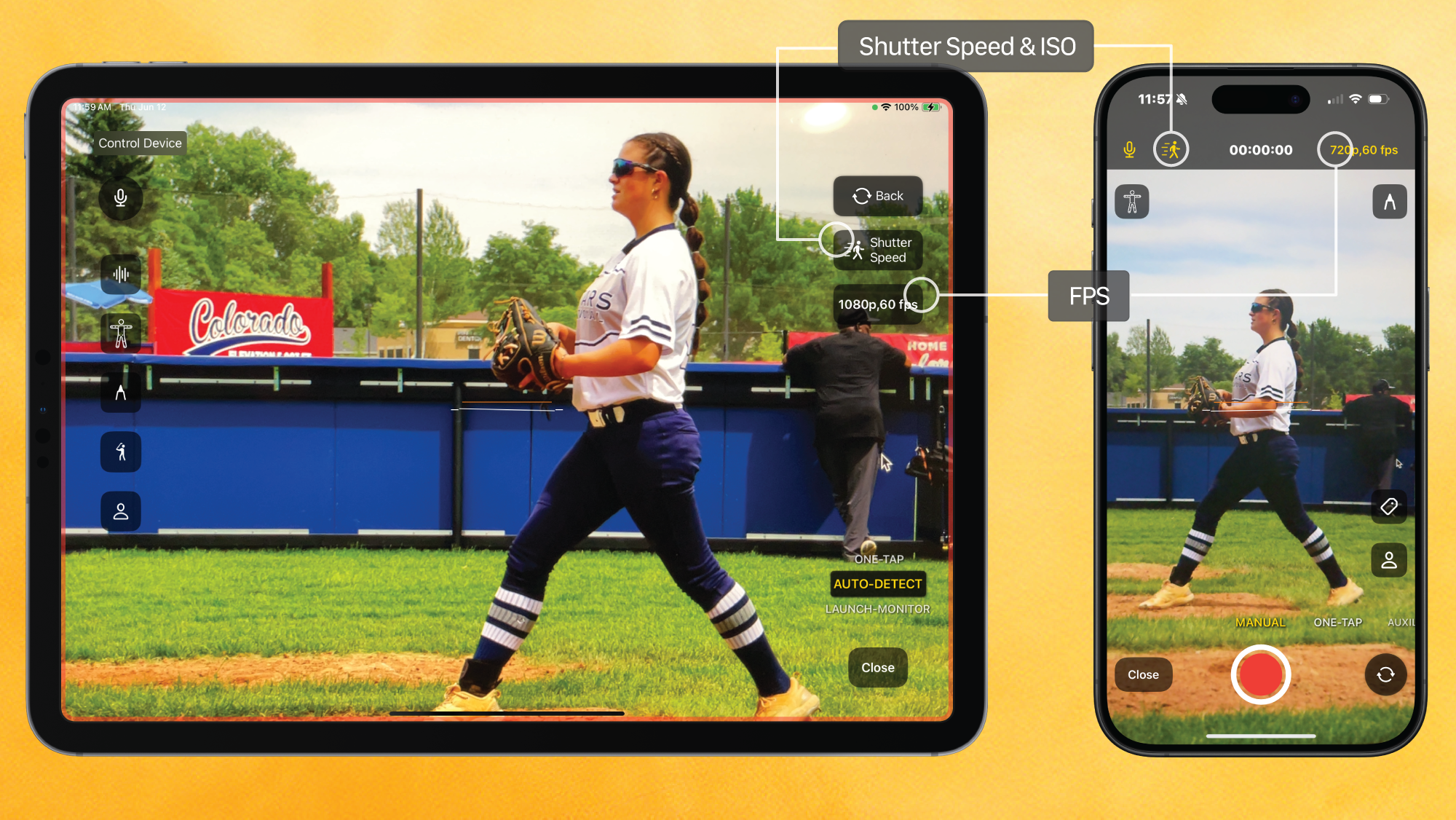
Shutter speed controls how long the camera shutter stays open. Faster speeds reduce motion blur but make the video darker. To compensate, you can adjust the ISO to brighten the image. Onform allows you to manually adjust the shutter speed and ISO to make your videos crystal clear, something you can’t easily do with your iPhone camera.
FPS (Frames Per Second)
Frames per second measures how many images are captured every second. A higher FPS gives smoother and more detailed videos, which is great for playing back high-speed movements in slow-motion. A lower FPS creates smaller file sizes that are easier to share. We allow you to capture anywhere from 30fps to 240fps. We recommend 1080 x 120fps as a great balance of clarity, file size and detail.
Analysis and Feedback

Voice-Over
Use Voice-Over to record a new video of all the actions you take on your screen and voice during a recording or while marking up a video with the analysis tools. You can add context to your analysis so your athlete better understands the feedback. This works well as take-home notes after a lesson or for remote coaching. If you don’t want your voice added to the video, you can just record the screen while you’re marking up a video.
Coach Cam
Coach Cam adds your face to the voice-over. It feels more personal and helps build connection, like you’re right there with the athlete. It’s also useful for demonstrating drills or other techniques.
Skeleton Tracking
Skeleton tracking is an AI tool that overlays a skeleton onto the athlete in the video, highlighting joint and body movement. You can tap on the skeleton to track the joint or to see internal or external angles and highlight parts of a movement that may cause injury or affect performance.
Comparison
Watch two videos side-by-side. You can sync them to the same moment (i.e. point of impact) and then play them together to spot subtle differences. This is helpful for comparing progress or analyzing a movement from two angles. It’s also helpful to compare your athlete to a pro in the Reference Content library.
Overlay
Overlay stacks one video on top of another. You can adjust how transparent they are or offset slightly for an up-close analysis. This makes small differences easier to spot.
3D Visualization
When you record using Auto-Detect, or Launch-Monitor mode, a 3D model of the movement appears within seconds of tapping on the 3D view pane button. It helps you visualize the motion more clearly, without being distracted by the body. 3D is currently only available for golf, but will be available to other sports in the future.
Sharing Options

Chat
Onform’s built-in direct messaging system, or simply “Chat” allows coaches to share videos, files and messages with clients privately or in bulk. Long press a video thumbnail, tap on Share, then tap on a person’s name to share that video to the individual.o share that video to the individual.
Group-Chat
Within a “Team” workspace, you can create groupings of the team members and thus have group-chats where all members of the group can post. Each member can see any post within a group chat.
Broadcast
Sending a Broadcast Message is how you send one message to everyone in a collection. Unlike a group text or group message, each person gets the message in their own private chat. It’s great for quick updates like “Practice is canceled” or “I have open spots this weekend!”
This glossary is here to serve as a quick reference whenever you need it. Whether you’re just getting started or looking to better understand a specific feature, these terms are the building blocks of how Onform works. We’ll add to it as we develop new features and terms for things that might not be common knowledge, so it’s helpful to keep it bookmarked for future use!
Ready to get started?
Download the app to start your free trial, or schedule a personalized demo with a member of our team!