
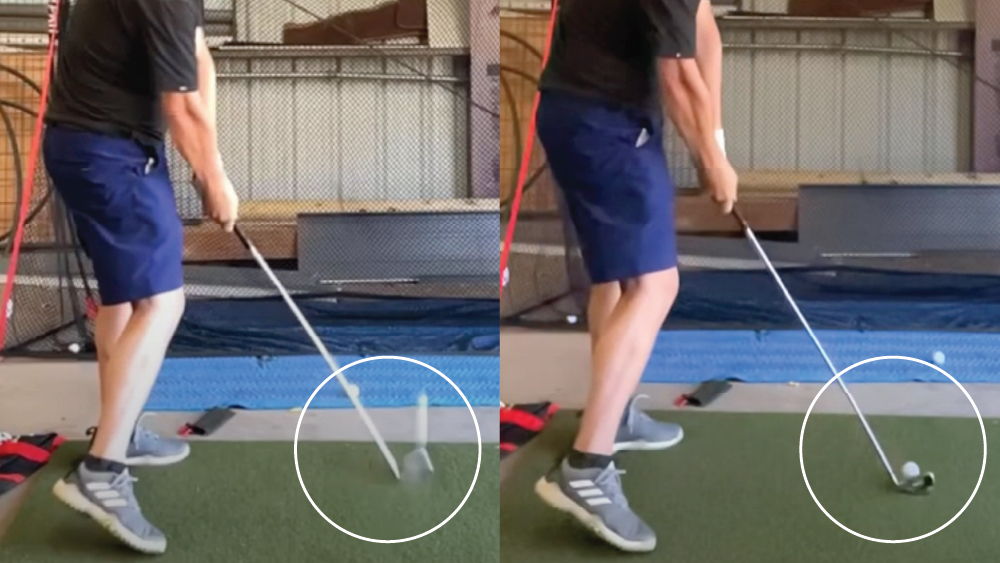
Every coach using video is looking for the same thing: clear, slow-motion footage to help describe improvements of their athletes’ technique. However, capturing fast-paced action often leads to the dreaded ‘motion blur’ effect. You can see in this image that the shaft of the golf club is blurred because it’s moving too quickly for the camera to capture it under the lighting conditions. The same thing happens with a pitchers arm, a batter’s bat or almost any fast moving action.
The key to reducing motion blur lies in having sufficient light on the subject, which allows for a fast shutter speed. Unfortunately, you can’t always control the lighting in every situation. In addition, reducing motion blur is about managing shutter speed, not ‘frames per second’ (fps), and most camera interfaces typically only allow control over fps (60, 120, 240) and resolution (720p, 1080p).
With Onform, you have complete control over both shutter speed and ISO (light sensitivity), which work together to produce the best video results. Most coaches will want the highest shutter speed possible, even if it results in a slightly grainy video, to achieve perfect stop motion.
Quick Tip: To eliminate motion blur, drag the shutter speed slider toward the rabbit icon for a faster shutter speed, and then adjust the ISO slider to the right (brighter) until the image is just bright enough.
How to Access the Controls You can access the Shutter Speed and ISO controls from the camera recording screen by tapping the “+ / -” button at the top of the camera screen. Faster shutter speeds will provide better stop-motion, but you must also increase the ISO setting to maintain brightness. As you adjust the sliders, you’ll see the immediate effect of your changes. These settings are remembered between recording sessions.
Indoor Recording Tip In poorly lit environments (often indoors), it’s a reasonable trade-off to accept slightly grainier video for better stop-motion action. Shutter speed controls are also available for the Auto-Detect recording mode – videos captured this way are recorded at 720p @ 60fps, allowing you to fine-tune the fastest shutter speed/ISO settings for your specific conditions.
Example of Improved Stop-Motion For a clear example of improved stop-motion, check out the video below. On the right is a recording of a golf swing using 1080p @ 240fps with the built-in Apple camera on an iPhone 12 Pro. While reasonably clear, the swing shows significant motion blur. On the left is a video taken moments later with a higher shutter speed using the Onform camera.
In various situations, the Onform camera video on the left shows dramatically improved clarity of the shaft, face impact, ball flight, and arms, even in poor indoor lighting. This allows for detailed analysis and reveals exactly what happens throughout the swing, something you can’t achieve with the built-in camera, even on a top-end iPhone.
Creating stop-motion action is much easier with the shutter speed and ISO controls. Give it a try; we think you’ll be very impressed with the results. When you do, share your videos on Instagram or Facebook and tag us.
You can access the shutter speed and ISO controls from the camera in version 1.99.9 or newer, available in the App Store. Enjoy! Schedule a free, personalized demo with a member of our team to learn how Onform can help you and your program.
Pingback: How Video Has Transformed The Golf Loft's Coaching Approach - Onform