
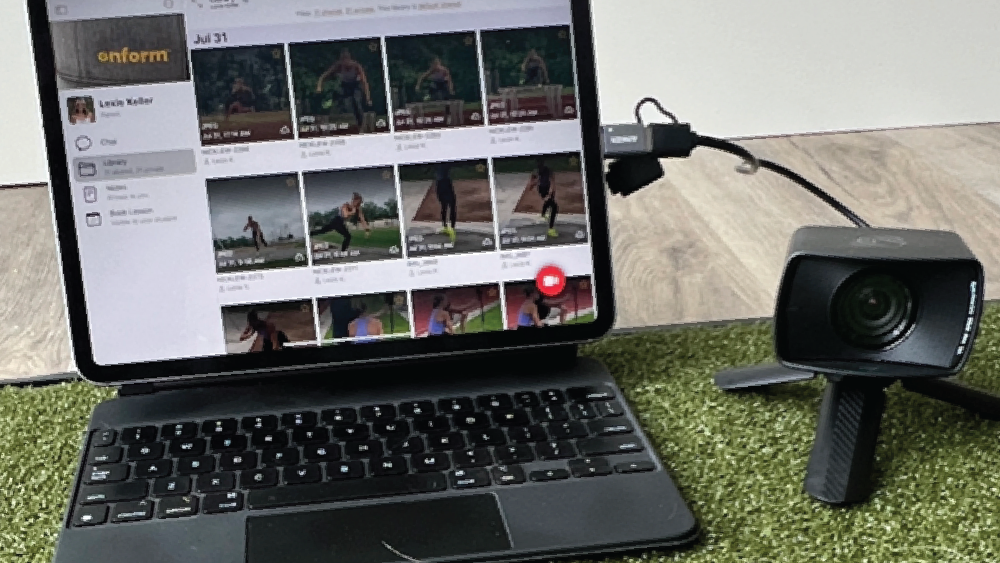
Unlock new video recording capabilities in Onform by using an external webcam. You can directly connect a webcam to your iPad and capture video without needing to transfer files from an SD card or import them from the camera roll.
Requirements
To get started, you need:
- A newer iPad running iOS 17 or newer
- A UVC compatible external camera
- A USB-C cable for direct connection
How to Connect and Record
- Connect Your Webcam: Plug your UVC compatible external camera into your iPad using a USB-C cable.
- Select the Webcam: Open the Onform app, go to the camera interface, and tap the lens selector icon to choose your connected webcam.

Benefits of Using an External Webcam
- Expanded Angles: Capture angles that are difficult to achieve with the iPad’s built-in lens.
- High Power Zoom: Utilize external cameras with high power zoom lenses for detailed shots.
- Versatile Camera Options: Connect virtually any external camera using an HDMI to USB converter.
Enhance Your Video Feedback
Using an external webcam adds flexibility and functionality to your video capture in Onform. Whether you need unique angles or stronger zoom capabilities, this feature enhances the ways you can utilize video feedback for training and analysis.
By integrating external cameras, Onform continues to broaden the possibilities for capturing high-quality video content, making your training sessions more effective and versatile.
Ready to try it out for yourself? Download Onform today
Prefer to talk to someone first? Schedule a FREE personalized demo with a member of our team.