
The Onform app now features color-coded Reference Ranges on swing metrics to quickly answer the question of, “Is this number good, bad or OK?” This guide will help you understand where these ranges are derived from, why they are useful, how they should be used in your lessons, and how to turn the feature off in situations where they are not needed.
How Onform Reference Ranges Are Generated
Reference Ranges in Onform are generated by analyzing the swings of the top 10 male and top 10 female golfers in the Official World Golf Ranking as of April 2026.
From these swings, we computed the statistical distributions of all available biomechanical metrics, including torso and pelvis rotations, bends, and positional displacements.
“We developed color-coded Reference Ranges so coaches can easily reference what is considered to be within a pro’s range for any given part of a golfer’s swing,” said Gear Fisher, co-founder and CEO of Onform. “These ranges represent typical motion patterns observed in elite golfers, providing a useful benchmark for evaluating a player’s swing, from beginners to advanced players.”
Gender and Club Type Variations
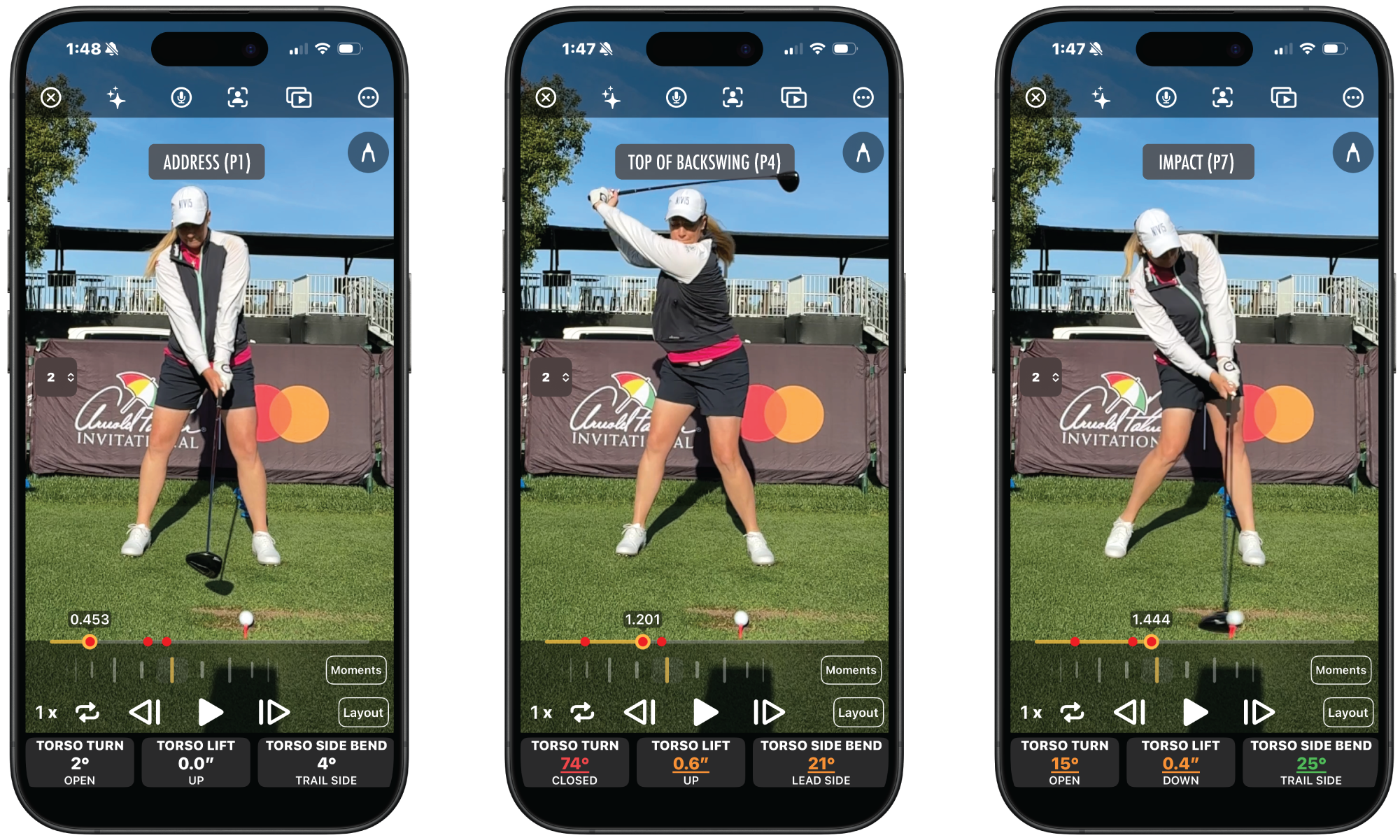
Because swing mechanics vary depending on gender and club type, the Reference Ranges are provided separately for male and female golfers and for driver and iron swings. For each metric, the reference values are defined at three key swing positions:
- Address
- Top of Backswing
- Impact
For example, the average rotation of the torso for a driver are as follows:
- Address for Males: 13.6
- Address for Females: 5.3
- Top for Males: -105.9
- Top for Females: -102.7
- Impact for Males: 13.6
- Impact for Females: 9.2
Understanding Onform’s Color-Coded Feedback
Onform uses a color-coding system when displaying metric values. This allows coaches to quickly identify which aspects of a swing are within typical professional ranges and which may differ significantly from elite patterns.
Each metric is compared against the professional reference distribution and categorized into one of three ranges:
- Green: This is the typical pro range. Any values within a mean ± one standard deviation of the professional dataset will appear green. While exceptions exist, in most cases, any metric in the green is considered “in range”.
- Orange: These are values just outside of the green range, on the borderline of the pro datasets. Instead of thinking of these as “OK” or a “C” grade, think of them more as a ways off from what the best players are doing.
- Red: These are values that fall outside of ± two standard deviations from the professional mean. While not always “red flags,” these are metrics that should be carefully evaluated from swing to swing to see if consistent flaws exist. Some players simply can’t move like the pros, and thus personalized adjustments should be taken.

How to Use Onform’s Reference Ranges in Your Coaching
Reference Ranges in Onform should be thought of as guidelines to compare your students with the swings of elite golfers. They exist to provide context rather than strict targets for your students to achieve.
Golf swings can vary considerably between players due to differences in body structure, mobility and swing style. This applies even to top professionals, as Scottie Scheffler’s swing differs significantly from Rory McIlroy’s.
This is why Onform’s Reference Ranges are derived from analysis of the top 10 male and top 10 female golfers in the world.
By clicking on any one of the available swing metrics in the Onform app, you will be able to see the comparison to the pro golfer reference range.
“Not every golfer will fit into those ranges, but it acts as a very handy guide for instructors to know how the swings of their students compare to top pros,” Fisher said.
Configuring Data Tiles
Clicking on the side of the data tiles in Onform allows you to select which metrics you want to see as well as configure the metrics to the profile of the student you’re assessing, with gender, club type and height of your golfer all accounted for.
By clicking the information icon in the Select Metrics window, you can view the full metric cards used to feed Onform’s AI model. This shows how Onform’s accuracy compares to other gold-standard systems.
Turning Reference Ranges Off
IIf you decide that Reference Ranges are not necessary or beneficial for one of your students, you can turn them off by tapping the ‘Layout’ button in the lower-right corner of the video player screen.
You can also hide all the metrics or individual data tiles for a customized experience.
Actual Use Case from PGA and LPGA Master Professional
Dr. Alison Curdt, a PGA Master Professional and LPGA Master Professional, believes the color-coded Reference Ranges in Onform allows players to easily see how close they are to improving certain movements in their swing. She also thinks the ranges are particularly useful for newer instructors.
“This is a great tool to educate them,” Curdt said. “Having a way to quantify improvement allows for a systematic approach to change, I believe, for newer coaches who are unfamiliar with the ideal reference ranges.”
For students, Curdt says the Reference Ranges gives them a concrete goal for each aspect of their swing.
“For example, if a senior player is under rotating their pelvis in the back swing at only 20 to 25 degrees, we can use the Reference Ranges as a goal to gradually increase mobility and rotation to 37 degrees and higher based on their body’s ability,” Curdt explained.
Curdt’s favorite aspect of Reference Ranges is the color coding as it’s quick to interpret on the go as a coach is learning what the low- and high-end of the ranges are. She advises all coaches to use their best judgement when deciding which metrics to share with students, in an effort to not overwhelm them with too much data.
“I will only have one measurement and Reference Range visible so that we can keep the student on task with improving that piece and not getting bummed out with too many pieces to fix at once,” she says.